
GitHub Enterprise App
Register a GitHub App on your GitHub Enterprise instance and install WarpBuild runners against your enterprise organizations.
Enterprise plan
GitHub Enterprise (GHES and GHEC) support is available only on the Enterprise plan. Schedule a call to get set up.
WarpBuild supports GitHub Enterprise (GHE) in addition to github.com. For GHE you register your own GitHub App on your enterprise and connect it to WarpBuild. This flow is required if you are on:
- GitHub Enterprise Cloud with data residency (e.g.
acme.ghe.com). - GitHub Enterprise Server (self-hosted, e.g.
github.acme.com).
For GHE accounts on github.com this flow is optional in case you want to install your own GitHub App instead of our recommended default flow.
How apps are shared
The App is registered at the enterprise level and shared across orgs in that enterprise:
- The first org from your enterprise (say
acme) goes through the flow below, creates the App, and installs it on org A. - Another org from
acmelater enters the same enterprise slug and host. WarpBuild detects the existing App and shows the notice below. No new App is created. That org just runs the install step against org B.
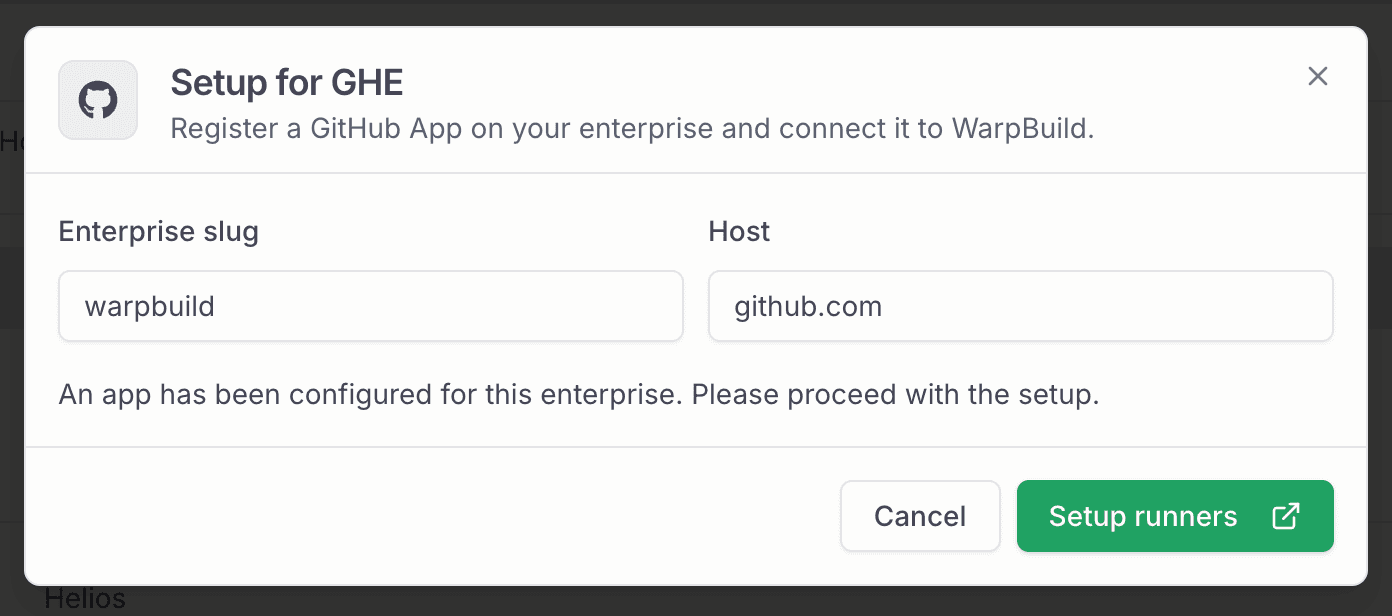
You only do the App-creation steps once per enterprise.
Prerequisites
- Enterprise owner access to your GHE instance. Required to register an enterprise-level App.
- Your enterprise slug (the path segment in
https://<host>/enterprises/<slug>). - Your enterprise host (e.g.
acme.ghe.comorgithub.acme.com). - A WarpBuild account.
- If your enterprise uses an IP allow list or restricts inbound traffic, allowlist the WarpBuild control plane egress IPs.
Setup
Open the GHE setup flow
In the WarpBuild dashboard, open Settings → Account. Under Products → Runners, click the chevron next to Setup Runners and choose Setup for GHE.

Enter your enterprise details
Fill in Enterprise slug and Host. The host auto-fills as <slug>.ghe.com. Edit it for GHES (e.g. github.acme.com).
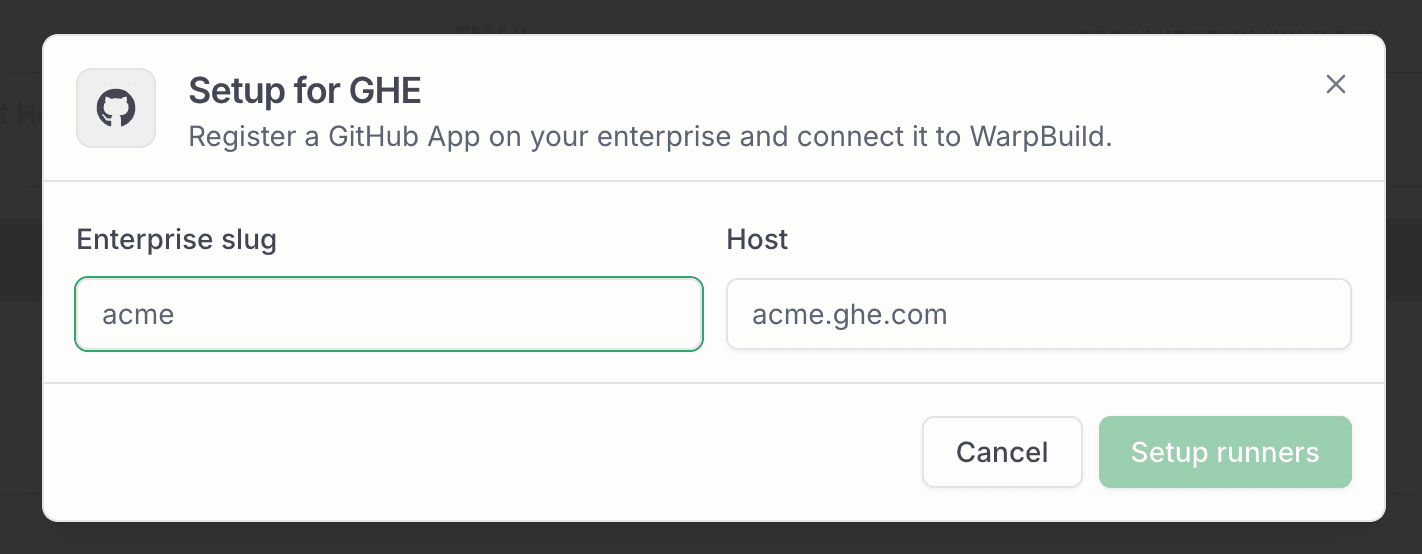
If no App exists yet for this host, the form expands with the credential fields. If one does, the dialog shows the existing-app notice and you can skip to step 5.
Do not change the permissions or events on the App. Doing so can lead to unexpected failures on job runs.
Create the GitHub App on your enterprise
Click the here link. GitHub opens your enterprise's App creation page with the manifest applied (name, webhook URL, callback URL, permissions). Confirm to create the App.
GitHub then shows the new App's settings page. Keep it open. The next step pulls values from it.
Copy credentials back into WarpBuild
Fill these fields in the WarpBuild form:
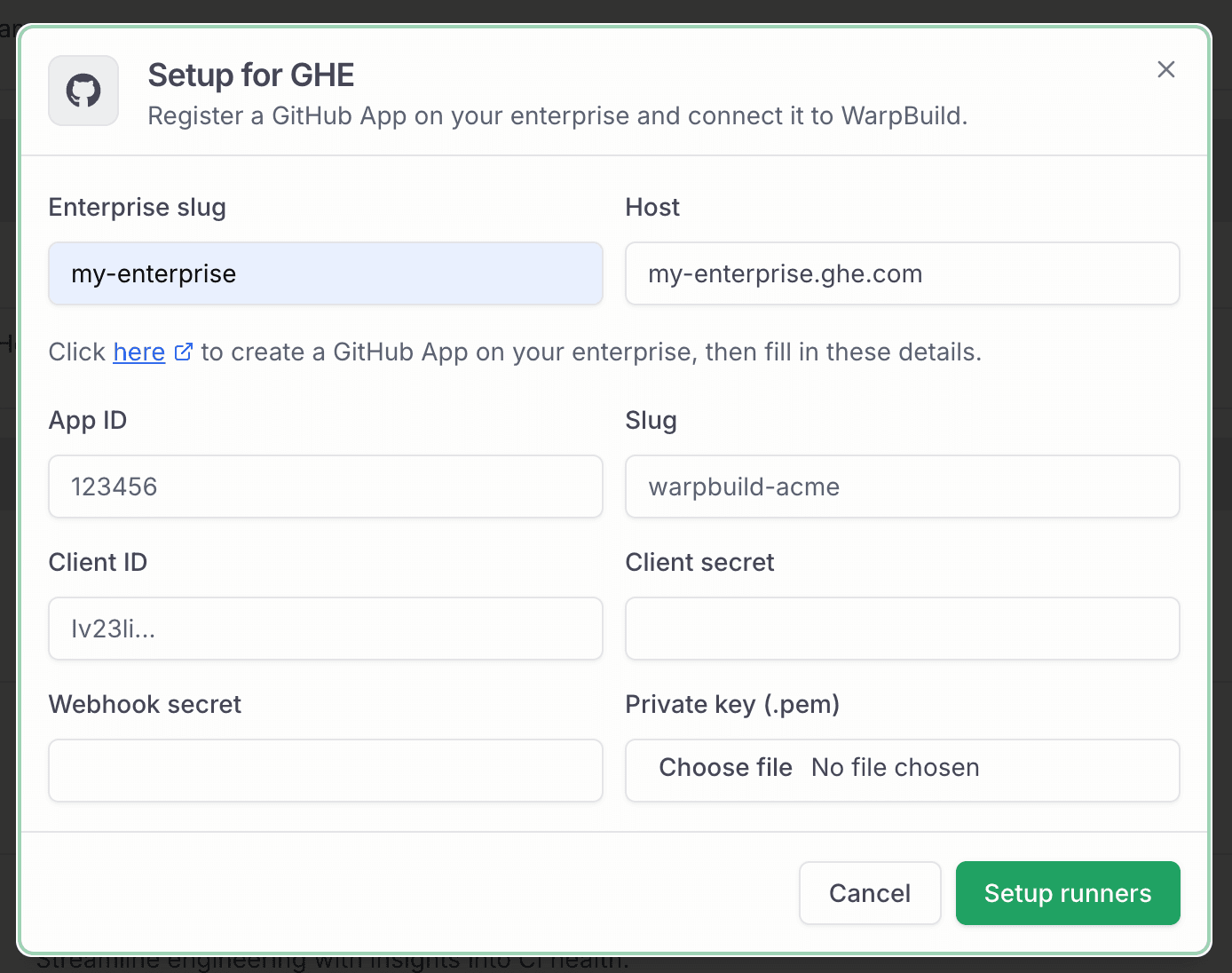
| Field | Where to find it on GitHub |
|---|---|
| App ID | Top of the App settings page |
| Slug | URL slug of the App page (e.g. warpbuild-acme) |
| Client ID | App settings page |
| Client secret | Generate one on the App page, paste it here |
| Webhook secret | Set one on the App page, paste the same value here |
| Private key (.pem) | Generate a key on the App page. GitHub downloads a .pem file. Upload it here. |
Install the App on your org
Click Setup runners. WarpBuild saves the App and redirects you to the GHE install flow. Pick the org, choose repositories, confirm.
You'll land back in WarpBuild with the integration marked Connected.
Using runners
Once connected, point your workflow's runs-on at a WarpBuild Runner ID. See Cloud Runners for the available labels.

The Configure Runners button deep-links to the App's installation settings on your enterprise host for adjusting repository access or uninstalling.
Rotating credentials
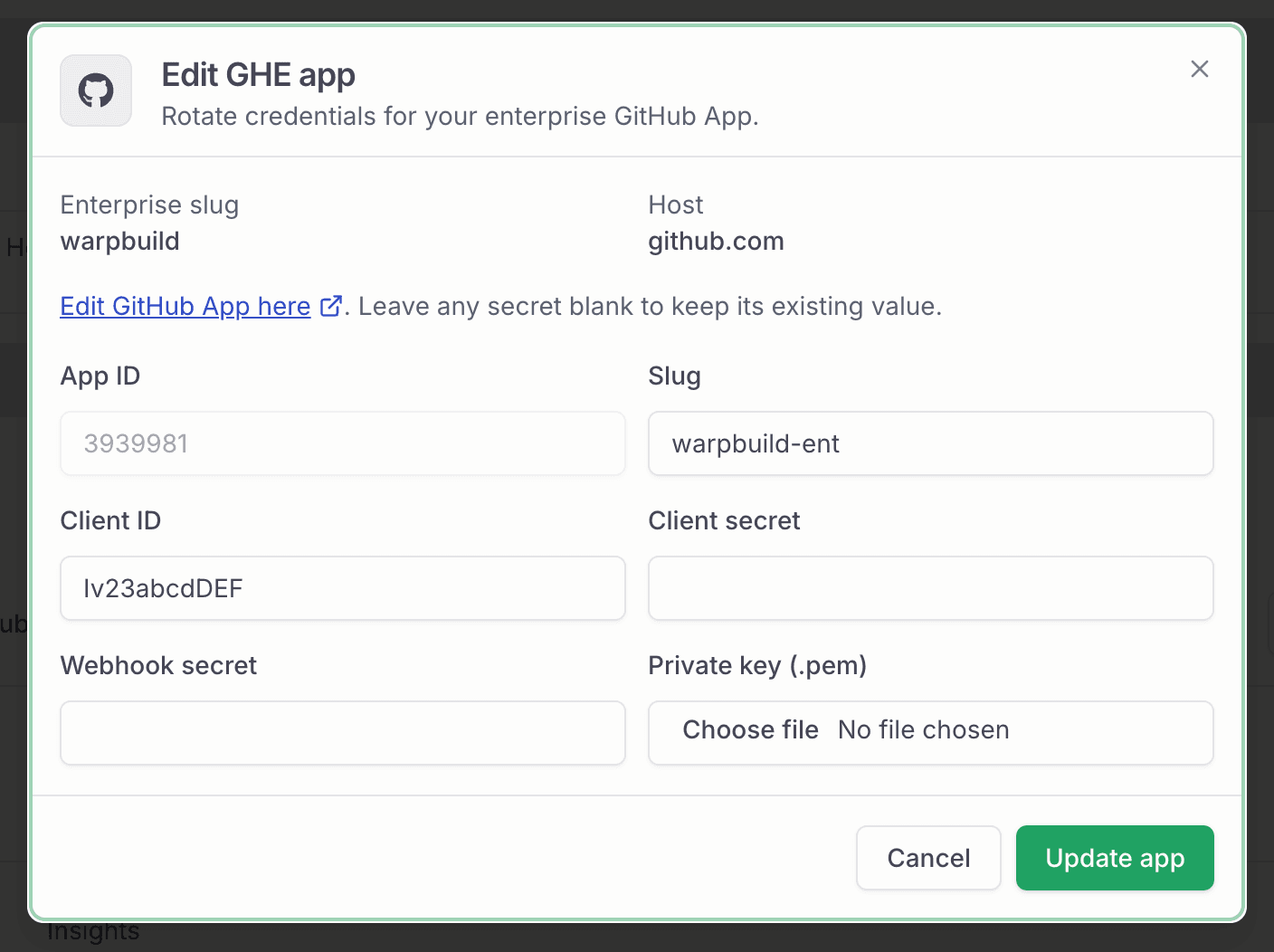
To rotate the client secret, webhook secret, or private key without reinstalling the App:
On the Products page, click Edit GHE app next to the Runners integration.

Paste them into the Edit GHE app dialog. Fields left blank keep their existing value.
Control plane egress IPs
The WarpBuild control plane makes outbound requests to GitHub (for runner registration, lifecycle management, and API calls) from the following static IP addresses:
3.13.16.127
3.141.157.169
3.151.226.250
If your organization uses a GitHub IP allow list or restricts inbound traffic to a GitHub Enterprise Server instance, add these IPs to the allow list so WarpBuild can communicate with GitHub on your behalf.
Troubleshooting
- "Failed to generate setup link. Check the host and enterprise slug." The slug or host is wrong, or WarpBuild can't reach your GHE host. Verify both from your enterprise URL.
- App created but install fails. Confirm the App is enterprise-level (not org-level) and that you have admin rights on the target org.
- Webhook deliveries not arriving. The webhook secret on WarpBuild must match the one on the App. Re-enter it via Edit GHE app.
For anything else, email [email protected].
Last updated on