
Config
Configuration and best practices for setting up Azure with WarpBuild
Prerequisites: Permissions
User must have Privileged Role Administrator for setup.
Cloud Connection
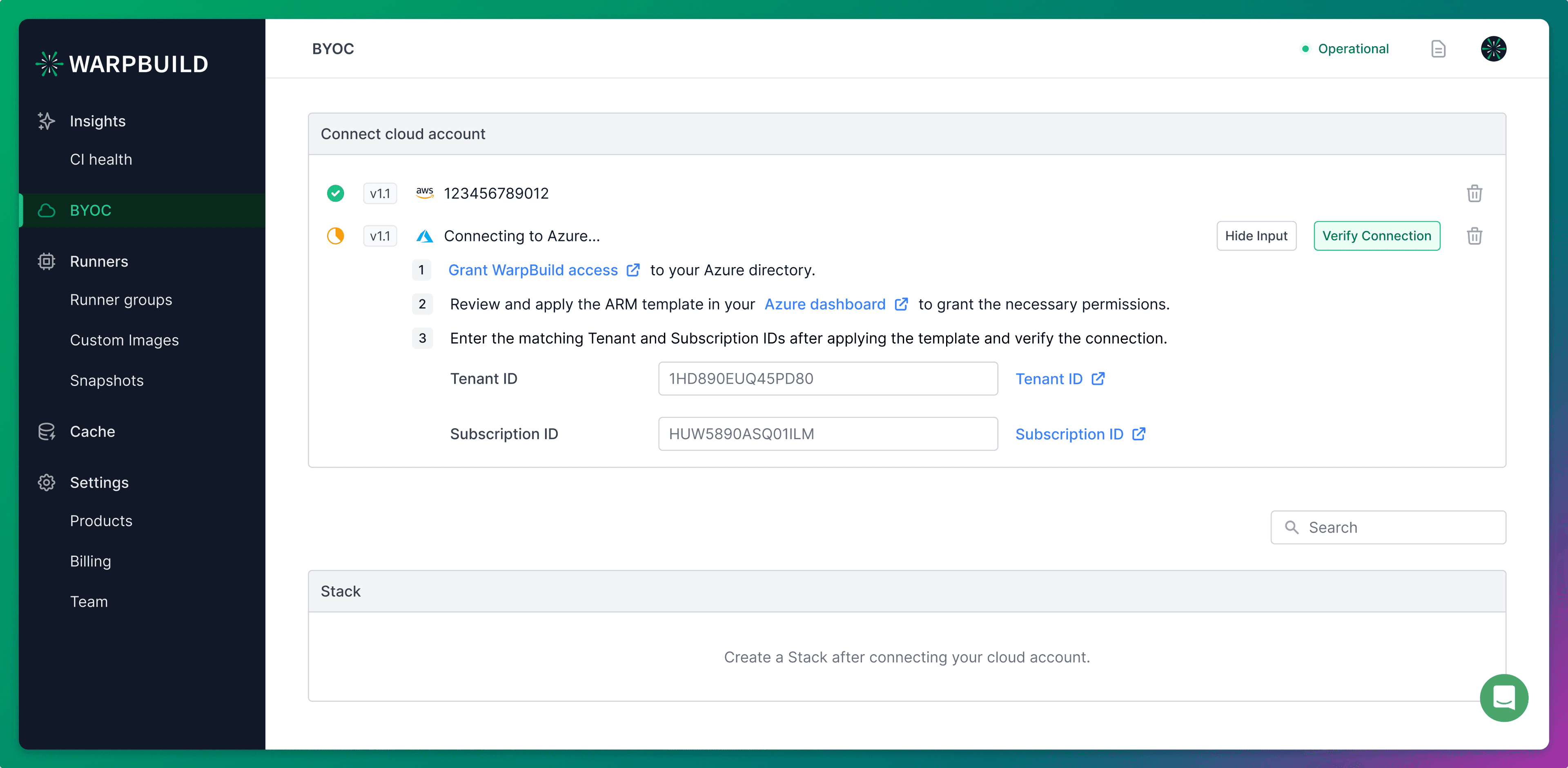
Creating a cloud connection sets up a consent for Warpbuild CI Enterprise application with the permissions required by WarpBuild to manage runners. Provide the tenant ID and subscription ID to verify the connection after the consent and permission configuration (arm deployment) is complete
Stack
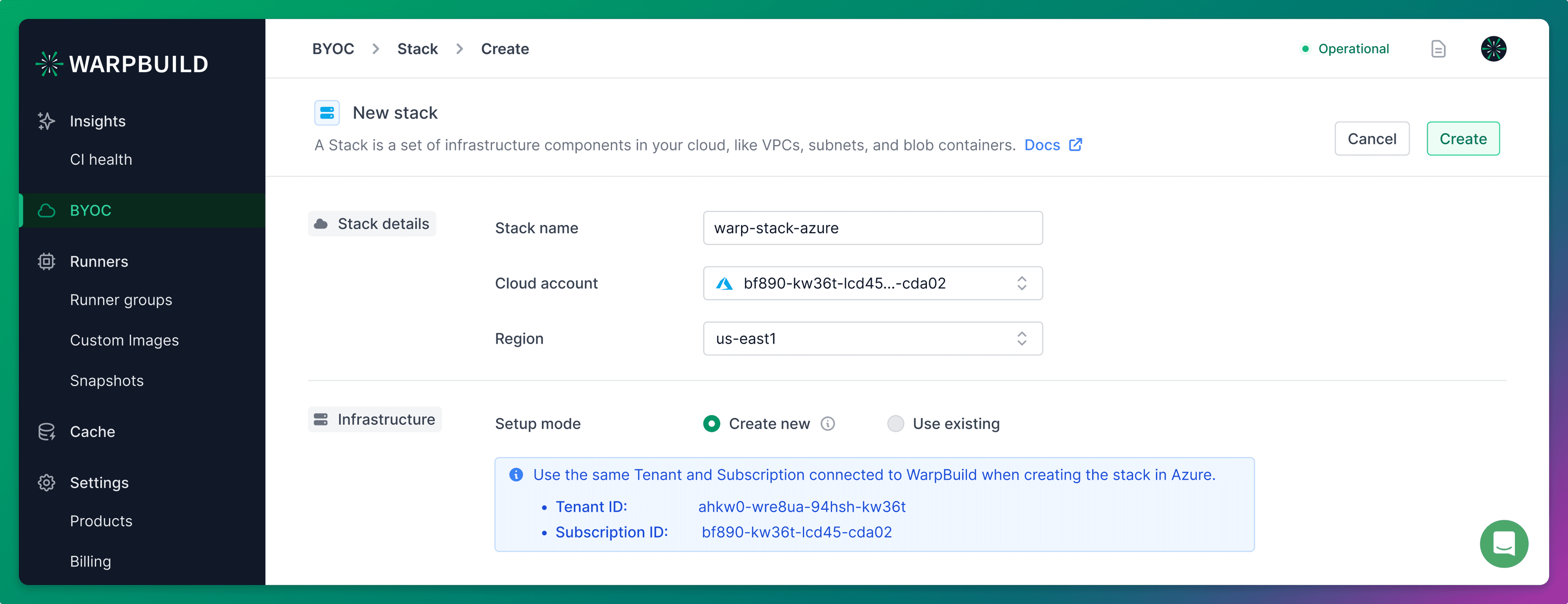
Creating a stack creates the infra configuration provided and
uses the storage account and container for cache and telemetry.
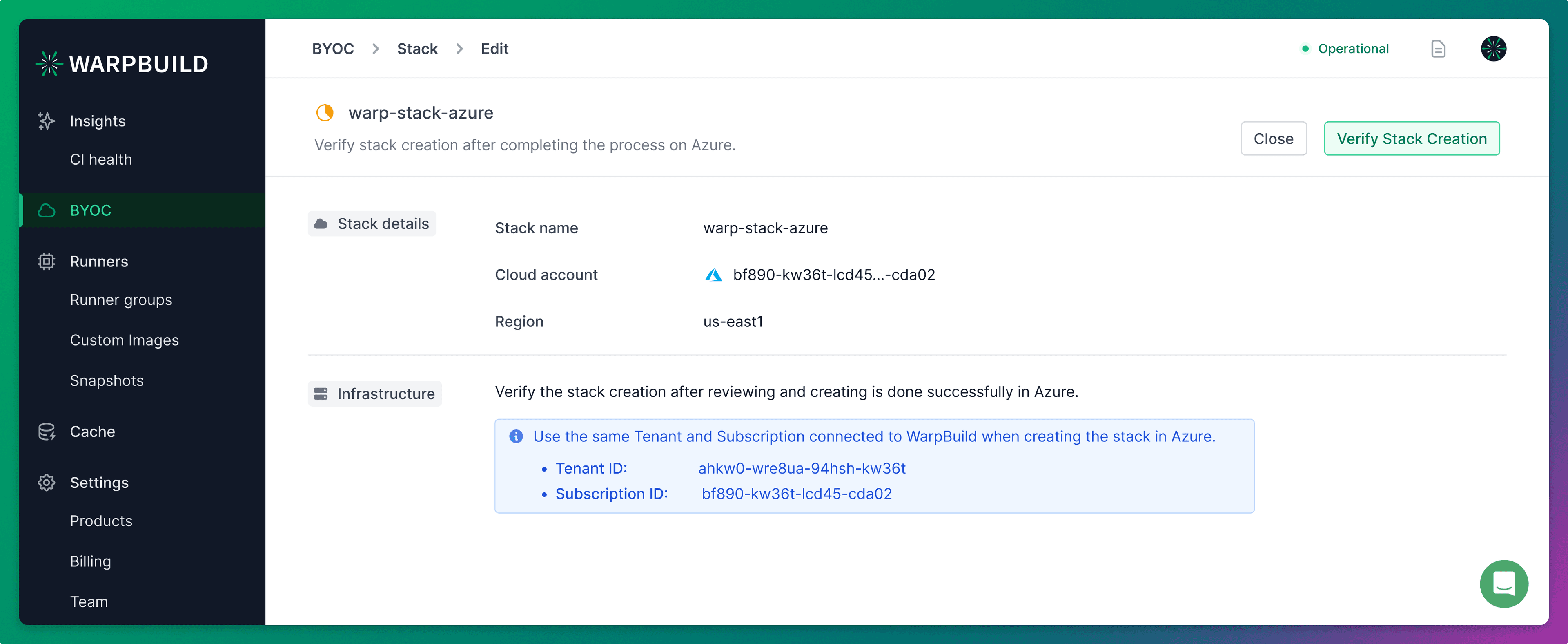
The stack name, storage account and container, and region cannot be changed after creation.
Custom Runners
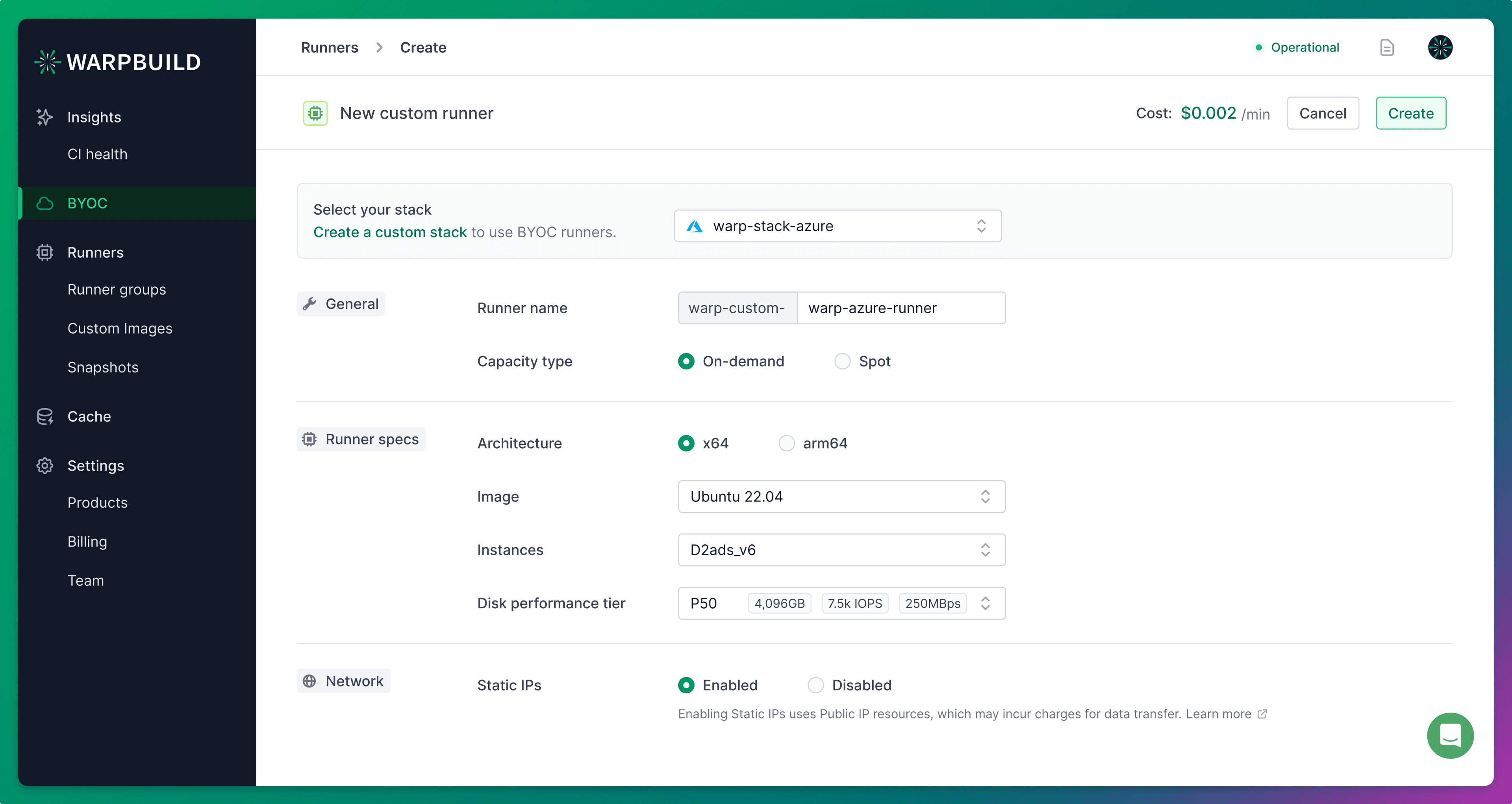
- Spot instances are useful for short jobs that can be interrupted and can lead to significant (~70%) cost savings.
- One or more instance types in priority order can be chosen. The Github workflow uses a single runner label but picks the instance type based on availability.
- The minimum disk configurations are:
- Size:
256GB
- Size:
Best practices:
- Choose a minimum disk configuration of:
- Size:
P20
- Size:
Throughput and IOPS automatically managed by Azure. Refer: https://learn.microsoft.com/en-us/azure/virtual-machines/disks-types#premium-ssd-size
Limitations
- BYOC Azure does not support import flow for stack creation.
- Snapshot-based runners are not available for BYOC Azure.
- BYOC Azure currently only enabled for East US. For adding more regions, please reach out to [email protected].
Local SSD
If the selected VM sizes include local NVMe temporary storage, the disks are automatically detected and mounted to the runner's work directory during boot. For Linux-based images only:
- A single local SSD is formatted and mounted directly.
- Multiple local SSDs are combined into a RAID-0 array for maximum throughput before mounting.
No configuration is required - the runner detects available NVMe devices at boot time.
Nested Virtualization
Nested virtualization works automatically on Azure VM sizes that support it with the default Standard security type. No additional configuration is needed. See the Nested Virtualization docs for details.
Coming Soon
- Resource tagging
Last updated on