
Config
Configuration and best practices for setting up GCP with WarpBuild
Prerequisites
Here's a checklist of things to have setup on your GCP Project when getting started:
✅ Associate billing account
The GCP project must be associated to a billing account for it to used. Use the link: https://console.cloud.google.com/billing/linkedaccount to check if your project is linked to a billing account. Make sure to choose your project from the project dropdown in GCP console.
✅ Enable services
WarpBuild requires the following services be enabled before initiating a cloud connect. Make sure to choose your project from the project dropdown in GCP console.
| Service | Purpose | Link |
|---|---|---|
| Cloud Storage API | Used for caches and storing telemetry | Enable |
| IAM Service Account Credentials API | Generates short lived tokens through our service account to your project specific service account | Enable |
| Identity and Access Management (IAM) API | Creates service account for access management in your project | Enable |
| Cloud Deployment Manager V2 API | Creates cloud integrations and stacks using deployment manager for easier versioning | Enable |
| Compute Engine API | Used for runner lifecycle management | Enable |
| Cloud Resource Manager API | Used for resource tagging and management | Enable |
Permissions
Users should have permissions to create the resources for cloud integration and stack.
The following roles should be associated with the user:
Cloud Connection
Creating a cloud connection sets up a service account role with the permissions required by WarpBuild Stacks and runners. This SA can be impersonated by WarpBuild's service account to generate short lived tokens which we use for access.
Stack
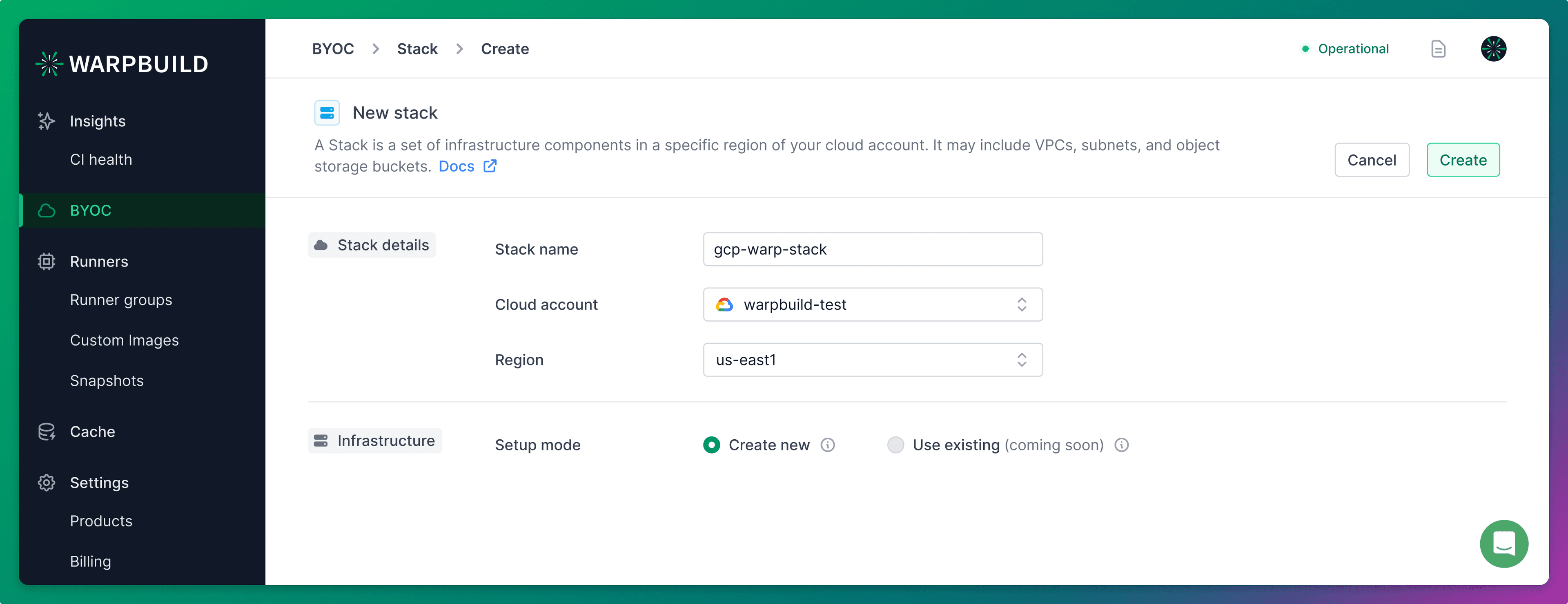
Creating a stack creates the infra configuration provided and
uses the cloud storage bucket for cache and telemetry.
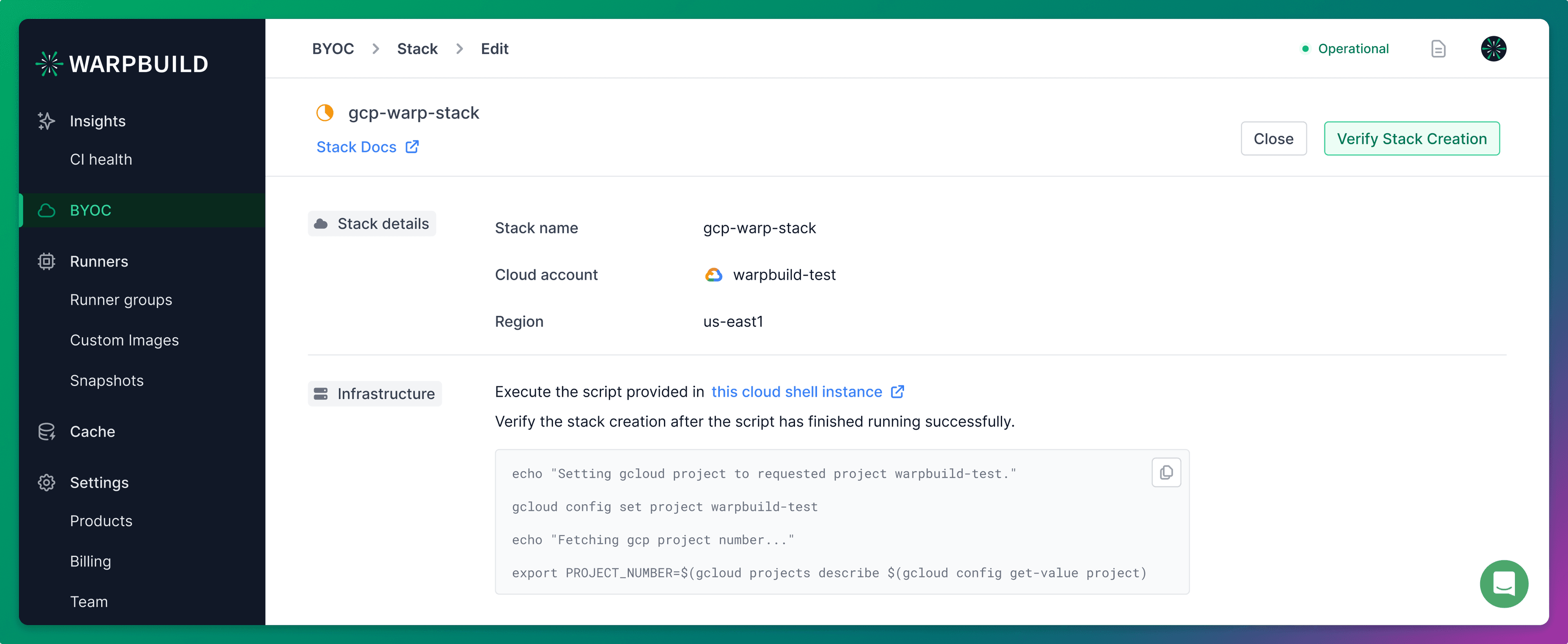
The stack name, cloud storage bucket, and region cannot be changed after creation.
Custom Runners
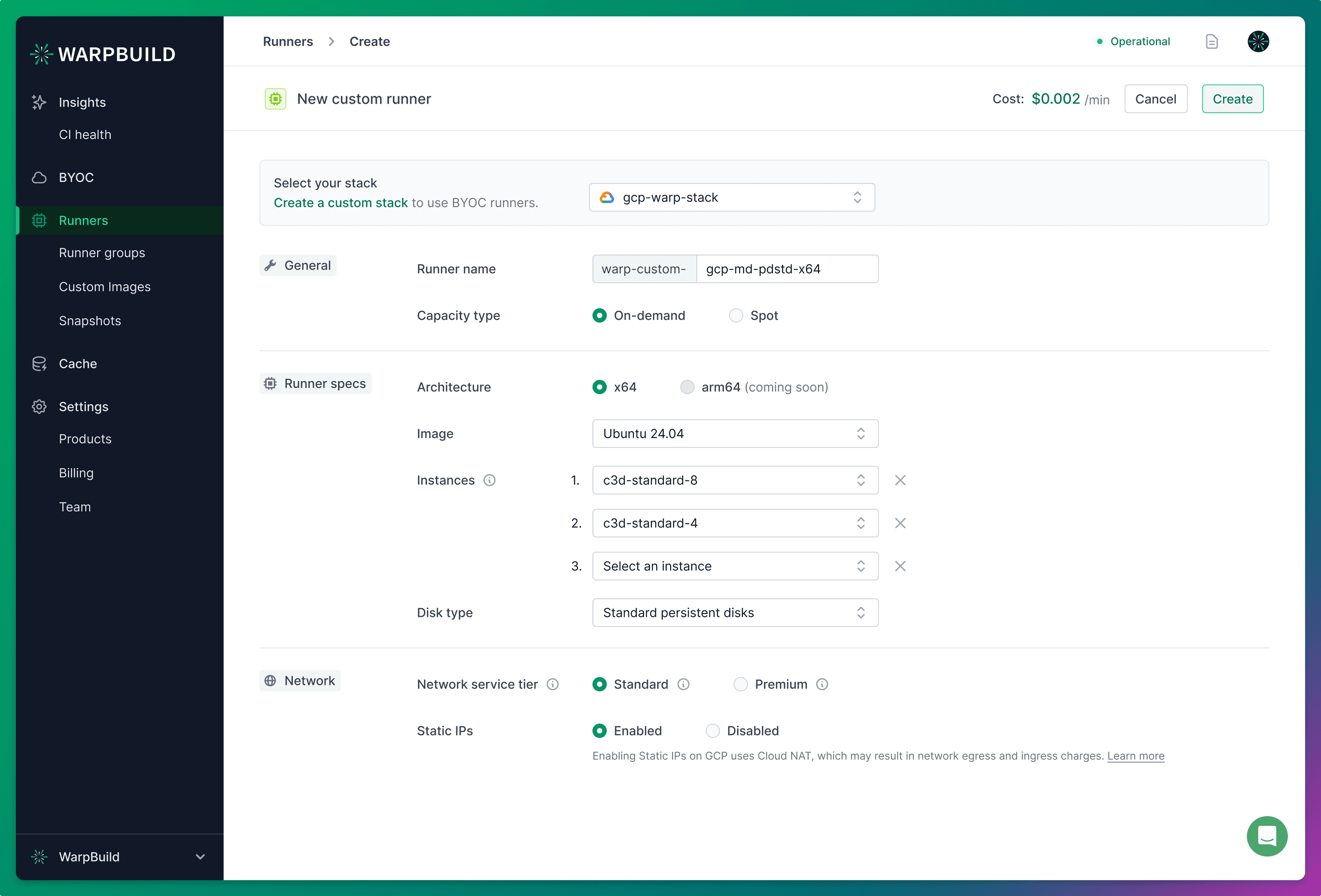
- Spot instances are useful for short jobs that can be interrupted and can lead to significant (~70%) cost savings.
- One or more instance types in priority order can be chosen. The Github workflow uses a single runner label but picks the instance type based on availability.
- The minimum disk configurations are:
- Size:
100GB
- Size:
Disk types
The following disk types are available for GCP BYOC runners:
| Disk Type | IOPS | Throughput | Notes |
|---|---|---|---|
pd-balanced | Managed by GCP | Managed by GCP | Default. Good balance of price and performance. |
pd-ssd | Managed by GCP | Managed by GCP | Higher baseline performance than pd-balanced. |
pd-standard | Managed by GCP | Managed by GCP | Lowest cost, suitable for non-I/O-intensive workloads. |
hyperdisk-balanced | 3,000 – 160,000 | 140 – 2,400 MiB/s | Provisioned IOPS and throughput. Best for I/O-heavy CI workloads. |
hyperdisk-extreme | 300 – 350,000 | N/A | Provisioned IOPS only. Highest IOPS ceiling for extreme workloads. |
For pd-* disk types, throughput and IOPS are automatically managed by GCP based on disk size. Refer: https://cloud.google.com/compute/docs/disks/performance
For hyperdisk-* disk types, you configure provisioned IOPS (and throughput for hyperdisk-balanced) directly in the runner creation UI.
Best practices:
- Use multiple instance types, especially when using spot instances to ensure availability and jobs aren't stuck in queue.
- When using multiple instance types, choose instance types that are similar in price and performance.
- Choose a minimum disk configuration of:
- Size:
150GB
- Size:
- For I/O-heavy workloads (large builds, container image operations, heavy test suites), use
hyperdisk-balancedwith a starting configuration of IOPS:3000and Throughput:140 MiB/s, then scale up based on observed performance. - When using Hyperdisk types, ensure your GCP project has sufficient Hyperdisk IOPS and throughput quotas in the stack region.
Limitations
- BYOC GCP does not support import flow for stack creation.
- Snapshot-based runners are not available for BYOC GCP.
Local SSD
If the selected instance types include bundled local SSDs (e.g., c3-standard-88-lssd, c4a-standard-4-lssd families), they are automatically detected and mounted to the runner's work directory during boot. For Linux-based images only:
- A single local SSD is formatted and mounted directly.
- Multiple local SSDs are combined into a RAID-0 array for maximum throughput before mounting.
No configuration is required - the runner detects available NVMe devices at boot time.
Nested Virtualization
Nested virtualization is automatically enabled when all instance types selected for the runner set support it. No additional configuration is needed. See the Nested Virtualization docs for details.
Coming Soon
- Resource tagging
Last updated on